Introduction
To connect to the remote access VPN on your FortiGate, you will need to configure your account, multi factor authentication, and your VPN app. It isn't difficult to set up, but there a few pieces that you need to complete in the right sequence in order for it to work.
Step 1 - Installing the Mobile Apps
There are two different apps you need to download before you can get started.
FortiToken Mobile
This app is used for your multi-factor authentication (MFA) for the VPN. Normally, you'll get a notification from the app where you just need to hit "Approve", but you can also open the app and get a 6 digit code to use as well.
Please download the app here:
FortiClient
This app is what you'll use for the VPN. Please note that there are two version of this app, "FortiClient" and "FortiClient VPN". Make sure you use the "FortiClient" version and not the one that says VPN, otherwise the VPN configurations will not be automatically installed.
Please download the app here:
Step 2 - Configuring your Account and MFA
Accepting the Invitation
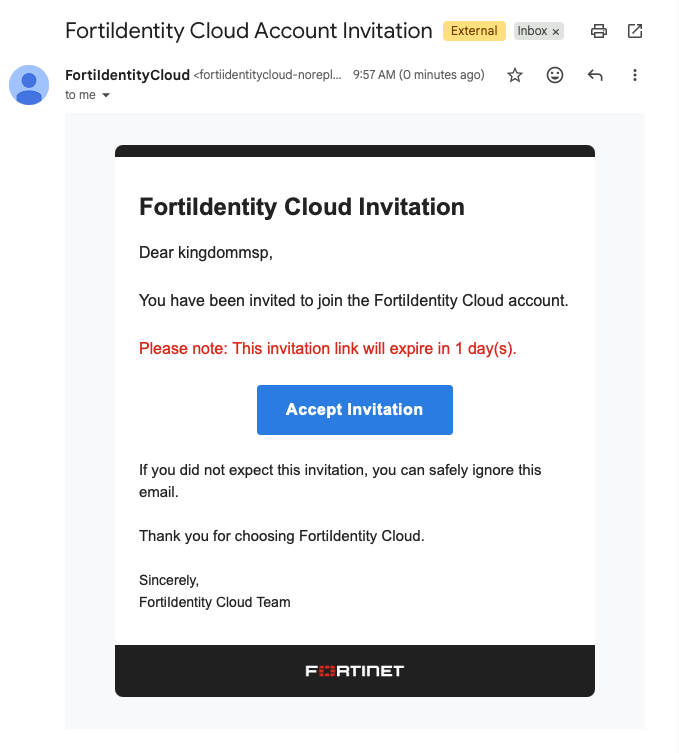
You should have received an email from "FortiIdentity Cloud" (FIC) with a subject of "FortiIdentity Cloud Invitation". Click on the button to accept the invitation.
Confirm your Email
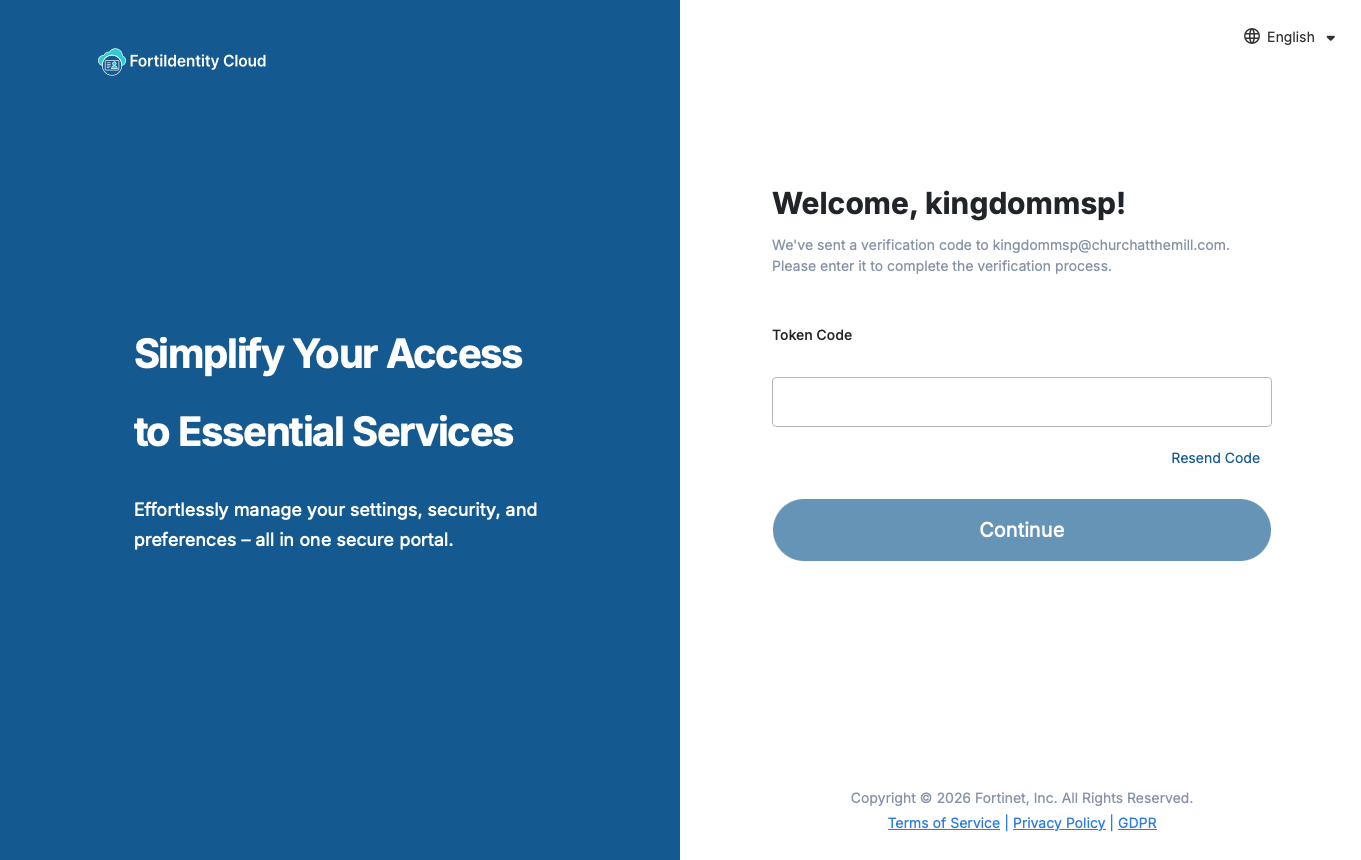
The button in the email should take you a page where it asks you to enter a token code. If you look back in your email, you should have another email from FIC with a 6-digit code that is valid for 5 minutes. Enter that code and then hit continue.
Create a Password
On the following page, you'll be prompted to configure your password. Make sure that this is unique for this account and that you store the password in a safe place. Once you have completed this, move on to the next stop.
Configuring your FortiToken
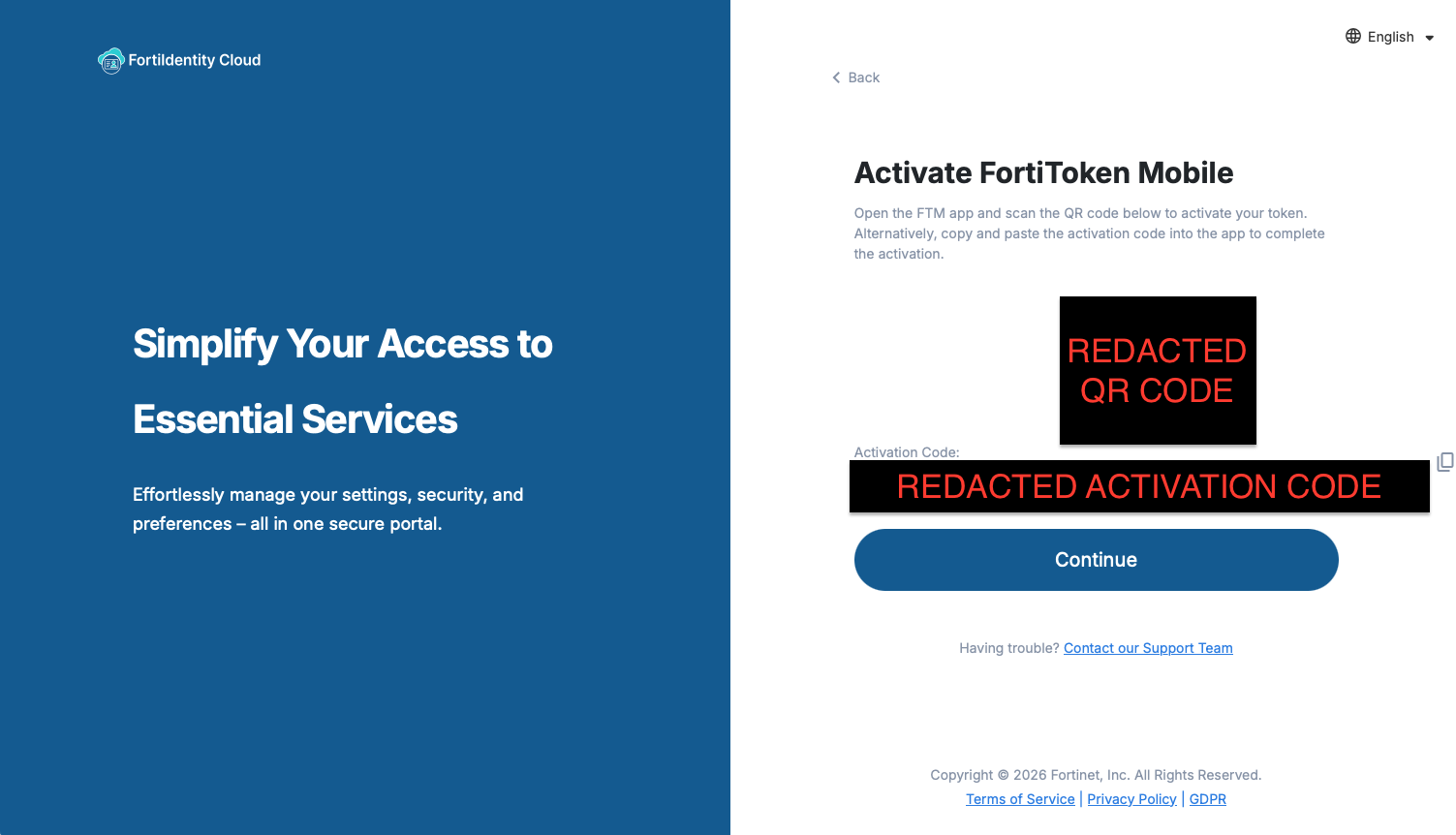
You should now see a screen that says "Activate FortiToken Mobile." There are two ways to complete this step:
- Open up the app you downloaded earlier, hitting the "+" icon in the top right corner, and then scan the QR code on the screen
- Copy the activation code shown below the QR code, hitting the "+" in the top right corner of the app you downloaded earlier, then selecting the "Enter Manually" option at the bottom of the screen.
Once you have configured the mobile app, you should see a 6-digit code being shown. If so, then go ahead and hit continue on the web page to complete the process.
Step 3 - Configuring your FortiClient App
Accepting the Invitation
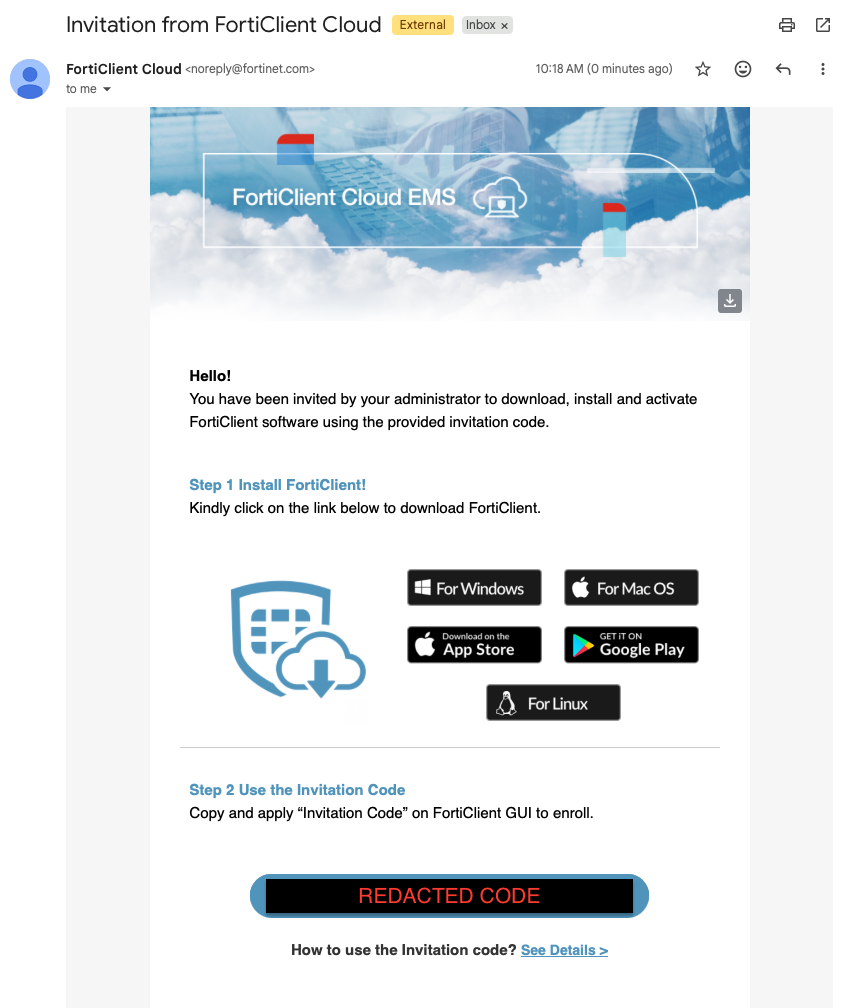
You should have received another email from "FortiClient Cloud" with a subject of "Invitation from FortiClient Cloud". You should already have the app installed, so you'll just need to copy the "Invitation Code", and then paste it into the "FortiClient" app.
Logging Into The App
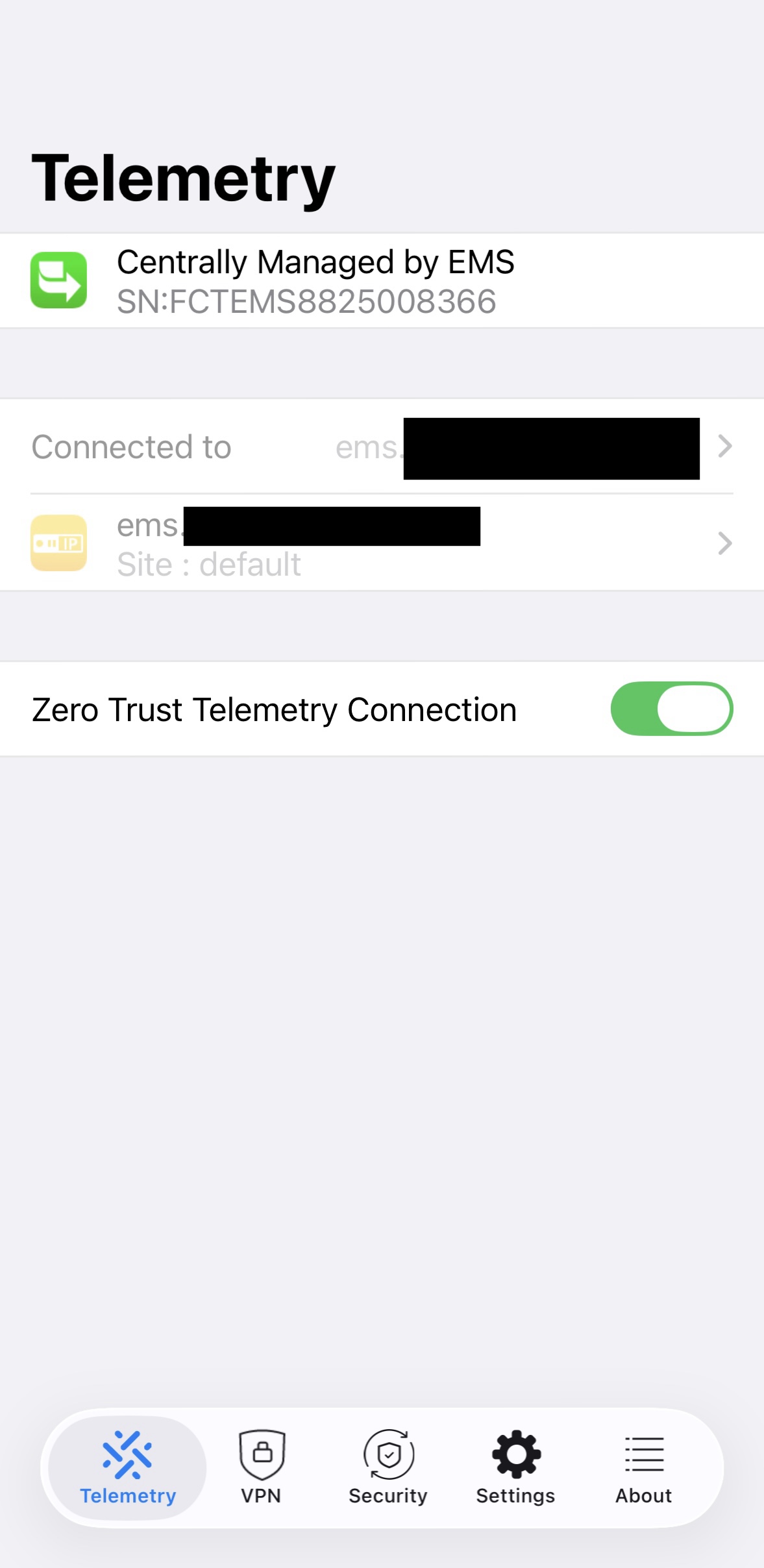
Once you have accepted the invitation, you'll need to actually log in using the username and password you set up earlier. After you enter that information in, you'll receive a push notification from FortiToken Mobile, where you can just hit "approve." If you do NOT get this notification, you can also open the app to find the 6-digit code to enter in. You should now see a screen that says "Telemetry" and "Centrally Managed by EMS".
Step 4 - Using the VPN
Connecting to the VPN
Open the FortiClient app, then click on the "VPN" section at the bottom. Select the "Connection" section to select your VPN from the list. Once you have selected the one you want, hit the back arrow at the top left of the screen. You should only need to do this the first time, or if you want to change the VPN connection setting.
On the main VPN screen, you should now see the VPN connection you just selected displayed at the top. Now, you can toggle the "Connect" button to connect to the VPN. You will see a popup that prompts you to log in, and you'll use the same username and password as before. Immediately after this, you should get another prompt for your FortiToken code, just like earlier. You can either hit the "approve" button or enter the 6-digit code.
Once you have successfully logged in, the status show show that you are now connected.
Disconnecting from the VPN
From the same VPN menu as before, just toggle the connect switch to the off position and you will be disconnected from the VPN.
Was this article helpful?
That’s Great!
Thank you for your feedback
Sorry! We couldn't be helpful
Thank you for your feedback
Feedback sent
We appreciate your effort and will try to fix the article